How-to
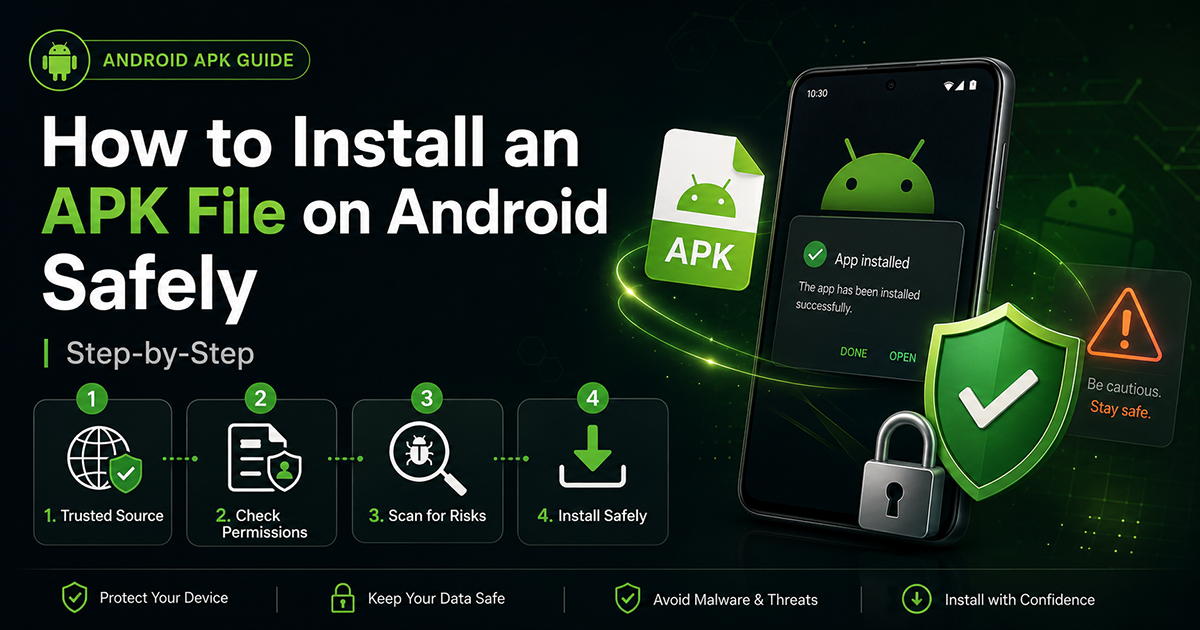
How to Install an APK File on Android Safely (Step-by-Step)
Sometimes you need to install an app that isn’t on the Google Play Store — an open-source app, a regional release, a beta, or an app your device’s store doesn’t carry. Installing it yourself is called sideloading, and it’s perfectly safe when you do it carefully. This guide walks through the whole process, how to vet a file first, and how to fix the errors people hit most often.
Before you start: the one rule that matters
Only ever install an APK from a source you have a real reason to trust — the developer’s own website, a recognized open-source repository like F-Droid, or an official mirror the developer links to themselves. The risky part of sideloading is never the act of installing; it’s installing something you couldn’t verify. If a file promises a paid app for free, that’s the signal to stop. (Here’s why “free premium” APKs fail every safety check.)
Step 1 — Download the APK from the official source
Go straight to the developer’s site or repository and download the APK there. Avoid generic “APK download” aggregators when you can — they often re-host files, and a re-hosted file is one you can no longer trace back to its author. Save the file somewhere you can find it, like your Downloads folder.
Step 2 — Verify the file before installing
Take two minutes to check what you’re about to install:
- Confirm the source. Did the link come from the developer’s official site or a repository you recognize? If you can’t say where it came from, don’t install it.
- Check the publisher’s signature. Reputable repositories list a checksum or signing certificate for each file. If the developer publishes one, you can confirm your download matches. We explain this in plain terms in our how-we-test method.
- Let Play Protect scan it. Android’s built-in Play Protect will scan sideloaded apps. Leave it on — it’s a useful second opinion, not an obstacle.
Step 3 — Allow installation for the app you’re using
Since Android 8.0, there’s no single “Unknown Sources” switch. Instead, you grant permission to the specific app doing the installing — usually your browser or your file manager. When you open the APK, Android will prompt you with something like “this source isn’t allowed to install apps.” Tap the prompt, find the app you downloaded with (for example, Chrome or Files), and turn on “Allow from this source.”
Granting it per-app like this is a security feature, not a hassle: it means only the one app you chose can install software, instead of opening the door for everything.
Step 4 — Open the APK and install
Go back to your Downloads, tap the APK, and tap Install. Android shows you the permissions the app is requesting before it finishes — read them. A flashlight app asking for your contacts and SMS is a red flag worth backing out over. When it’s done, tap Open, or find the new app in your drawer.
Step 5 — Turn the permission back off
Once the app is installed, revoke the install permission you granted in Step 3. Head back to that setting and switch “Allow from this source” off. The app you installed keeps working; you’ve just closed the door behind you so nothing else can use it.
Fixing the most common errors
“App not installed.” Usually means a version of the app is already on your phone with a different signature, or storage is full. Uninstall the existing copy first, free up space, and try again.
“There was a problem parsing the package.” The file is incomplete or built for a different Android version. Re-download it, and check the app actually supports your version of Android.
Play Protect blocked it. If you trust the source, you can choose to install anyway — but treat a Play Protect warning as a reason to double-check where the file came from, not something to wave through automatically.
The install button is greyed out. You haven’t granted the install permission to the app you’re opening the file with. Go back to Step 3.
When you should not sideload
Skip it entirely for any file advertising a cracked, modded, or “premium unlocked” version of a paid app, or anything claiming to bypass a device lock or account. Those aren’t apps you failed to verify — they’re apps that fail verification by design. If the app you want exists on the Play Store, get it there instead.
FAQ
Is sideloading APKs safe?
Yes, as long as the file comes from a source you trust and you verify it first. The danger is never the install itself — it’s installing something unverified.
Do I need to root my phone to install an APK?
No. Sideloading works on any standard Android phone without rooting. Rooting is a separate, more advanced process and isn’t required here.
Where’s the “Unknown Sources” setting on newer Android?
It moved. Modern Android grants install permission per app instead of one global toggle, so you’ll enable it for your browser or file manager when you open the APK.
Can I get the APK of an app I already own?
Often yes — many developers offer direct downloads, and open-source apps publish their APKs openly. Stick to the developer’s official channel.